Buffering has a pattern, and once you see it you can fix it. The picture freezes for three seconds, then jumps, then freezes again — usually in the last quarter, usually on a Friday or Saturday night, usually when the whole street is online. The instinct is to blame the IPTV service. Sometimes that is right. Most of the time in Australia it is not: it is the Wi-Fi in the lounge room, the router that has been on for six months, or an NBN plan that tests at 45 Mbps at the modem and 8 Mbps at the TV. The ten checks below run in the order that fixes the most homes the fastest.
Before the checks, one measurement. Open a speed test on the TV itself, or on your phone standing next to the TV, at 7:30pm on a weeknight. If it shows 25 Mbps or more, the connection can hold a 4K stream and the problem is somewhere else. If it shows under 10 Mbps, no IPTV service will fix it — the Wi-Fi is the problem. Write the number down. Everything after this is about getting that number up at the TV, not at the modem. The NBN speed guide explains what the numbers mean.
IPTV Buffering Fix Australia: The Ten Checks
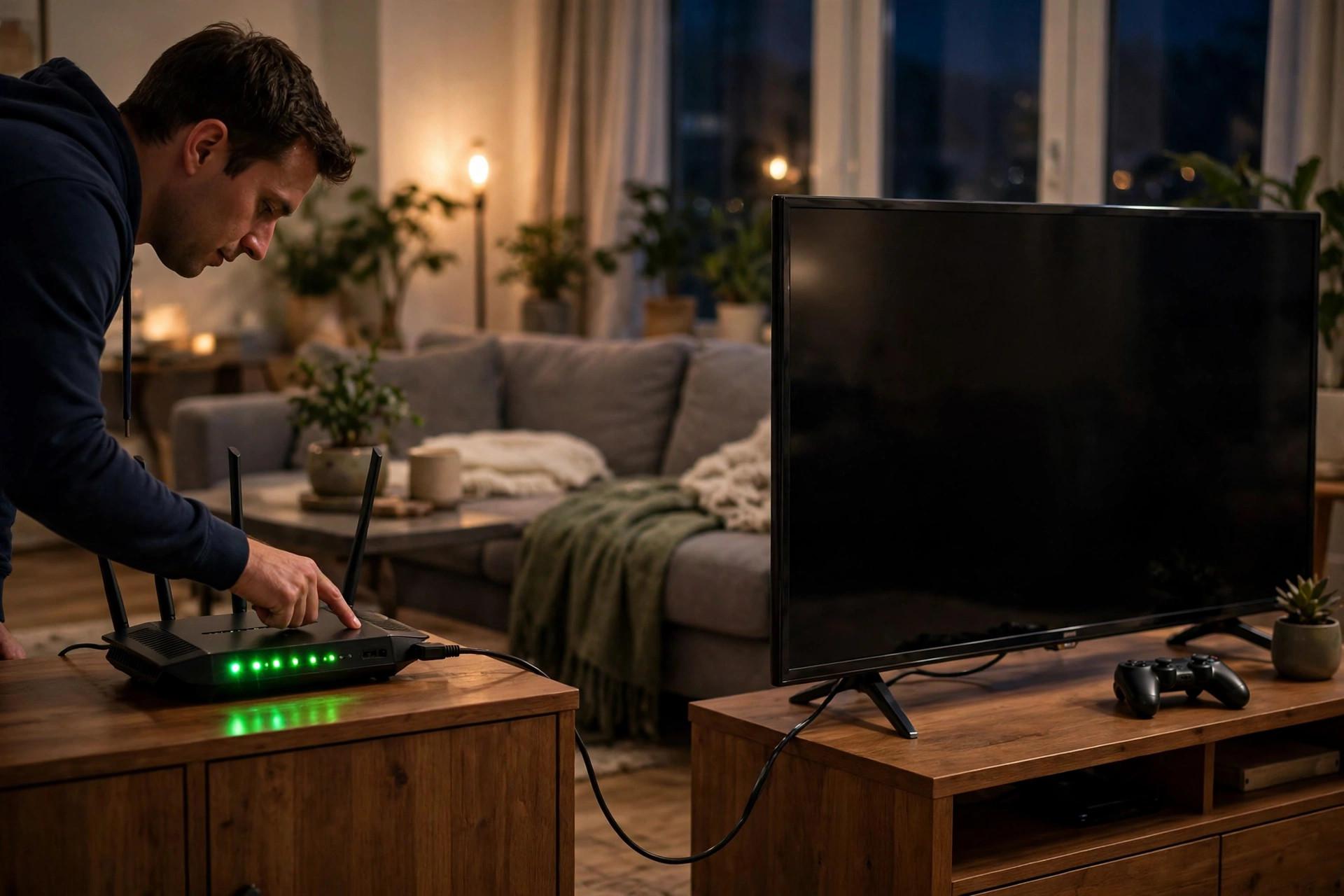
- 1. Restart the router and the modem — unplug for 30 seconds, plug back in, wait 3 minutes.
- 2. Restart the IPTV app, then the TV or Firestick — a week of uptime slows both down.
- 3. Use Ethernet if the TV is near the modem — a cable beats any Wi-Fi fix.
- 4. Switch the TV to the 5 GHz Wi-Fi band — it is faster and less crowded than 2.4 GHz.
- 5. Move the router out of the cabinet and up high — walls and metal kill the signal.
- 6. Set the player buffer to Large in TiviMate or Smarters settings.
- 7. Drop the stream to Full HD for the night if 4K keeps freezing.
- 8. Close the downloads and the cloud backup on other devices during the game.
- 9. Test at 7:30pm, not at 2pm — peak hour is the only test that counts.
- 10. Message support on WhatsApp if it still freezes — with the speed test number.
Why Peak Hour Is the Real Test
The NBN is a shared network. At 2pm the street is quiet and a speed test shows the full plan speed. At 7:30pm every house is streaming, gaming and backing up photos, and the speed at your TV can halve. That is why a service can look perfect on a Tuesday afternoon and freeze on a Friday night — and why the free trial has to include a peak-hour game, not a midday test. Run the trial on a Friday night AFL or NRL game, and if the picture holds from the first bounce to the last siren, the service is fine and the remaining work is your Wi-Fi. The best IPTV Australia guide explains how to use the trial properly.
Ethernet, Mesh Wi-Fi and the $30 Fix
The cheapest fix here is a $30 Ethernet cable. If the modem is in the same room as the TV, or one room away with a door you can run a cable through, plug the TV or the Firestick in with the Ethernet adapter and the buffering usually stops that night. If the modem is at the other end of the house, a mesh Wi-Fi system — two or three nodes, one near the modem and one near the TV — is the next best spend, and it fixes the phones and laptops too. A Wi-Fi extender is the last resort: it extends the signal but halves the speed, and it is the cause of more buffering than it fixes. Buy the cable first, the mesh second, and skip the extender.
App Settings: Buffer Size and Stream Quality
Two settings inside the player matter. The first is the buffer size: in TiviMate and in IPTV Smarters Pro, set it to Large. A bigger buffer means the app holds more of the stream ahead of what you are watching, so a two-second dip in the Wi-Fi does not reach the screen. The second is the stream quality: if 4K freezes and Full HD does not, watch in Full HD for the night. A clean Full HD picture beats a freezing 4K one, and the difference on a 55-inch TV from three metres away is smaller than the marketing suggests. The TiviMate setup guide and the Smarters setup guide show where both settings live.
When It Really Is the Service
Sometimes it is the service, and the way to tell is the pattern. If every channel freezes at the same time, on every device, on Ethernet, at 2pm and at 8pm, that points at the server. If one channel freezes while the others are fine, that points at the channel feed. If the freezing starts at the same time every night and stops at 10pm, that points at peak-hour congestion somewhere upstream. Message support on WhatsApp with three facts: the speed test number at the TV, whether it happens on Ethernet, and whether it is one channel or all of them. A good provider will check the server and move you to a different one if needed. If they cannot answer those three questions, that tells you something too.
The check people skip is the one that matters most on game night: open the channel five minutes before kick-off. A stream that has been running for five minutes has a full buffer, a settled connection and a stable bitrate; a stream opened at the first bounce is still negotiating while the game is already moving. The same applies to the router restart — do it on Friday afternoon, not at 7:25pm, because the modem takes three minutes to come back and the last thing you want is the house offline when the teams run out. The pre-game routine is boring and it works: restart the router in the afternoon, open the channel early, and leave the remote alone. The NBN guide explains the speed numbers behind the routine, and the Firestick guide covers the device most people watch on.
Do the ten checks before the next big game, not during it. Restart the router on Friday afternoon, run the Ethernet cable, set the buffer to Large, and open the channel five minutes before kick-off so the stream settles. The game is stressful enough without the picture joining in.
Buffering by time of day: the peak-hour pattern
Buffering has a timetable, and learning it tells you where the problem lives. If the stream freezes at 8pm on a Friday and runs perfectly at 11am on a Tuesday, the problem is congestion — either the household's Wi-Fi at peak hour or the street's NBN at peak hour — and not the playlist. The 8pm peak is when every house in the street is streaming, gaming and video-calling at once, and the NBN slows for everyone. If the stream freezes at all hours, including quiet mornings, the problem is in the house: the Wi-Fi, the stick, or the playlist itself. The fix is different in each case, and guessing wastes evenings.
The peak-hour test is simple. Watch the same channel at 8pm and again at 10:30pm. If the later viewing is smooth, the connection is fine and the peak is the problem — and the answer is the Ethernet cable or the 5 GHz band, not a plan upgrade. If both viewings freeze the same way, work through the house: restart the router, move the stick closer to the router, clear the app cache. And if one channel freezes while the others play fine, the problem is that channel's feed, and switching to the backup feed of the same channel — Fox Footy has more than one — fixes it in seconds. The NBN speed guide has the numbers behind the peak-hour story.
Wi-Fi versus Ethernet: the one change that fixes most freezes
Wi-Fi is convenient and Ethernet is reliable, and for a lounge TV the reliable option wins. A 4K stream needs about 25 Mbps steady to the TV, and Wi-Fi delivers that most of the time — until the microwave runs, the neighbour's network interferes, or the TV sits two rooms from the router behind a brick wall. An Ethernet cable from the router to the Firestick, through a cheap adapter, or to the smart TV directly, removes all of that at once. The picture stops freezing, the channel changes get faster, and the EPG loads properly. It is the single most effective fix in this whole guide, and it costs less than a month of any subscription.
When a cable is genuinely impossible — the router is at the other end of the house and nobody is running a cable through the ceiling — the 5 GHz band is the next best thing. The Firestick and the smart TV both see two networks from most Australian routers: the 2.4 GHz network, which reaches further but is slower and more crowded, and the 5 GHz network, which is faster and cleaner over short distances. Put the lounge TV on 5 GHz and the phones and the smart lights on 2.4 GHz. A mesh Wi-Fi system is the bigger answer for a large house: one router and one or two satellites, so the back bedroom gets the same speed as the lounge. Spend the money on the Wi-Fi before spending it on a faster NBN plan — the NBN guide shows why NBN 50 already handles 4K.
When the problem is the playlist, not your internet
Sometimes the internet is fine and the playlist is the problem, and there is a quick way to tell. Open a different app — the free-to-air catch-up app, or a movie on the on-demand library — and watch it for five minutes. If the other app plays smoothly while the live channel freezes, the connection is fine and the channel feed is the problem. The fix is to switch to the backup feed: most popular channels have more than one source in the playlist, and the second feed often runs on a different server. In TiviMate, long-press the channel and look for the alternate streams. In Smarters Pro, the channel list shows the duplicates next to each other.
| Symptom | Likely cause | Fix first |
|---|---|---|
| Freezes only at 8pm | Peak-hour congestion | Ethernet cable or 5 GHz band |
| Freezes at all hours | Wi-Fi or the stick | Restart router, clear app cache |
| One channel freezes, others fine | That channel's feed | Switch to the backup feed |
| EPG blank, picture fine | EPG not downloaded | Reload EPG, wait for it to finish |
| Everything freezes, other apps fine | Playlist server load | Message support on WhatsApp |
The last row of that table is the one people skip: message support. If the other apps play fine, the NBN speed at the TV is over 25 Mbps, the Ethernet cable is in, and the channel still freezes, the problem is upstream, and the support team can move the playlist to a different server or check the feed. Message them on WhatsApp with the channel name, the time it froze and what the speed test showed — that is enough for them to act on. Guessing for another hour is not.
The final check is the one nobody does: the age of the equipment. A router that is five years old, a Firestick that is four years old, and a television that is six years old will each add a little lag, and together they add up to a picture that freezes on game night while the neighbour's new setup runs smoothly. The router is the most important of the three — the Wi-Fi standards have moved on, and a modern router delivers a steadier signal to the back bedroom than the one the NBN installer left in 2019. If the speed at the TV is fine on a cable but poor on Wi-Fi, the router is the upgrade, not the plan. And if the Firestick is the oldest thing in the room, the 4K Max is the upgrade. Replace the weakest link, test again at 8pm, and the freezing usually stops.