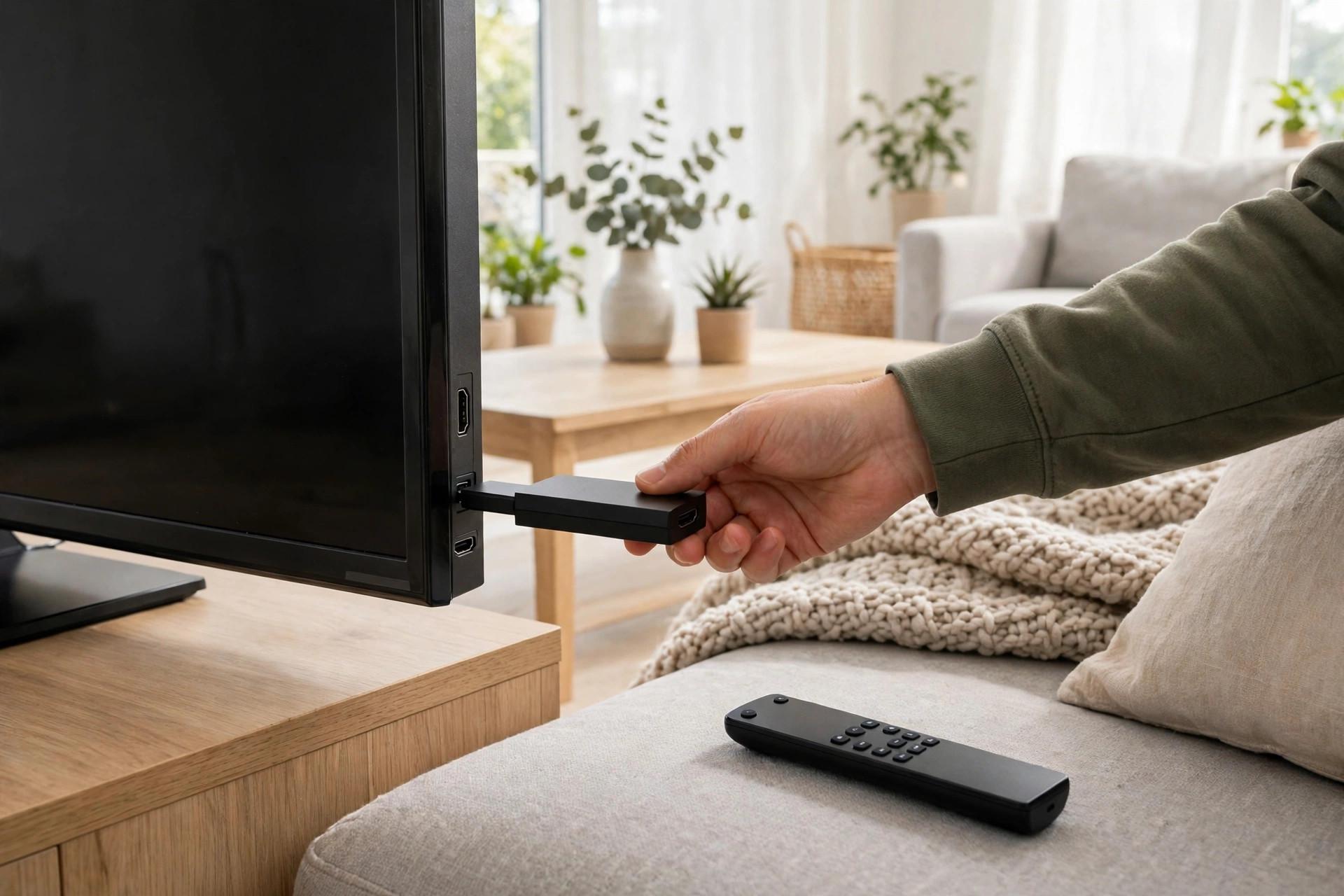
The Amazon Firestick is the most common IPTV device in Australian lounge rooms, and the reason is the price: a Firestick 4K Max costs around $119 at Amazon Australia and JB Hi-Fi, it plugs into any TV with an HDMI port, and it turns a ten-year-old television into a smart TV. It is also the device that confuses people the most, because the IPTV player is not in the Amazon Appstore and the install goes through an app called Downloader. This guide does it step by step, with the exact code and the exact screens.
Before you start, you need two things: the Firestick plugged in and connected to Wi-Fi, and the WhatsApp message from 4K Media Australia with your trial or subscription details. If you have not started the free 24-hour trial yet, do that first — the activation step at the end needs the trial to be live. The best IPTV Australia guide explains what the trial includes.
IPTV Firestick Australia Setup: The Five Steps
Step one: on the Firestick home screen, go to Settings, then My Fire TV, then Developer Options, and turn on Apps from Unknown Sources. On newer Firestick software the Developer Options entry is hidden — if you do not see it, go to Settings, then My Fire TV, then About, and press the select button on the remote seven times on the first entry. Developer Options appears, and you can turn the setting on. This is the step that stops most people, and it is only a menu.
- Step 1: Settings → My Fire TV → Developer Options → turn on Apps from Unknown Sources.
- Step 2: install Downloader from the Amazon Appstore and open it.
- Step 3: get IBO Pro Player via Downloader (ask on WhatsApp for the current code) and press Go — IBO Pro Player downloads.
- Step 4: install IBO Pro Player, open it, copy the MAC address and key on screen.
- Step 5: send the MAC + key to 4K Media Australia on WhatsApp, then restart the app.
Step two and three are the quick ones. Install Downloader from the Appstore — it is free and it is Amazon's own tool for this job. Open it, get IBO Pro Player via Downloader (ask on WhatsApp for the current code), press Go, and the IBO Pro Player file downloads. Install it when asked. Step four: open IBO Pro Player and the screen shows a MAC address and a key. Take a photo of it with your phone. Step five: send the photo and the numbers to 4K Media Australia on WhatsApp. Activation usually takes a few minutes. Restart IBO Pro Player, and the channels load: the Australian channels, Fox Footy, Fox League, Fox Cricket, Optus Sport, the movies and the rest.
Which Firestick Should You Buy?
The Firestick 4K Max is the one to buy. It costs around $119, it has the fastest processor, it handles 4K properly, and its Wi-Fi is the strongest of the range — which matters in a lounge room two walls from the modem. The standard Firestick 4K is cheaper and it works, but it is slower to open apps and it struggles with the 4K feed when the Wi-Fi is weak. The Fire TV Cube is the fastest of all and has hands-free Alexa, but it costs more and the extra speed is not needed for IPTV. If you already own a standard 4K stick, keep it; if you are buying new, buy the Max.
Firestick Tips That Save an Evening
Three things make the Firestick experience better. First, use the Ethernet adapter if the TV is near the modem — Amazon sells one for the Firestick, and a wired connection removes the most common cause of buffering. Second, restart the Firestick once a week: hold the select and play buttons together for ten seconds, or unplug it for thirty seconds. A stick that has been on for a month gets slow. Third, keep the Firestick software updated: Settings, then My Fire TV, then About, then Check for Updates. The buffering fix guide has the full checklist for the nights when the picture stutters.
Firestick Problems and the Fixes
If IBO Pro Player shows a black screen after activation, restart the app, then restart the stick. If the channels load but the EPG is empty, wait ten minutes — the first guide load is slow — then restart the app once. If Downloader will not open the code, check the Wi-Fi and type the code again slowly; a mistyped digit is the usual cause. If the picture buffers on 4K but not on HD, the Wi-Fi is the problem, not the service — move the stick to the TV's other HDMI port away from the wall, or use the Ethernet adapter. And if none of it works, message support on WhatsApp with the MAC address and a photo of the screen: the fix is usually a reactivation, and it takes two minutes. The TiviMate setup guide covers the alternative player if you would rather use TiviMate on the same stick.
The accessory that makes the most difference on a Firestick is the Ethernet adapter, and it costs about the same as a month of Kayo. The adapter plugs into the Firestick's power cable and gives the stick a wired connection, and the difference on a 4K stream is immediate: the picture stops dipping when the microwave runs, and the last quarter stops freezing when the neighbours get home. If the modem is in the same room as the TV, buy the adapter before you buy anything else. If the modem is at the other end of the house, the adapter cannot help — the cable would have to cross the hallway — and a mesh Wi-Fi node near the TV is the better spend. Either way, test the stick on Wi-Fi first during the trial, and buy the accessory only if the trial shows you need it. The buffering guide has the full checklist, and the NBN guide explains why the Wi-Fi matters more than the plan.
Five minutes, one code, one WhatsApp message. That is the whole install — and once it is done, the stick stays done. The next time you turn the TV on, IBO Pro Player is on the home screen and the footy is one click away.
Firestick models compared: Lite, 4K, 4K Max and Cube
Not all Firesticks are equal, and the model decides how smooth the IPTV experience feels. The Fire TV Stick Lite is the cheapest and the weakest — fine for a bedroom TV that plays one show at a time, but the EPG in TiviMate will feel slow and the 4K channels are out of reach. The Fire TV Stick 4K plays 4K properly and is the sensible minimum for the lounge. The Fire TV Stick 4K Max is the one to buy: more memory, faster Wi-Fi, and the headroom to keep the EPG, the player and the background apps running without stuttering. The Fire TV Cube is the fastest of all, with hands-free Alexa and an Ethernet port built in, but it costs more than most households need to spend on a streaming stick.
The practical rule is simple: the lounge gets the 4K Max, the bedroom gets the older stick, and the Lite goes in the kids' room or the caravan. The difference shows up on game night, when the EPG is loading, the 4K feed is running and the household is switching between Fox Footy and the news — the Max keeps up, the Lite lags. If the house already owns an older stick and the picture freezes, try the setup on the newest stick before blaming the playlist. The Samsung and LG guide covers the households that skip the stick entirely and use the TV's own apps.
Storage full? Managing apps, cache and the Firestick's small disk
The Firestick's storage is its quiet weakness. The 4K Max has 16 GB, and after the system takes its share there is room for a handful of apps — TiviMate, Smarters Pro, Netflix, the free-to-air catch-up apps — and then the low-storage warning appears. The first fix is to uninstall the apps the house never opens: the games, the music apps, the shopping apps that came pre-installed. The second fix is to clear the cache, not the data: Settings, Applications, Manage Installed Applications, pick the app, Clear Cache. Clearing the cache frees space without logging you out. Clearing the data logs you out of everything, including the IPTV playlist, and means typing the username and password again — do not press it by accident.
The third fix is the one that lasts: a USB drive with an OTG cable for recordings and for app storage on the models that support it. TiviMate Premium records to the USB drive, which keeps the Firestick's own storage free for the apps. The fourth fix is to keep the Firestick's software updated — Settings, My Fire TV, About, Check for Updates — because the updates include the Wi-Fi and video fixes that the older software lacks. A stick that has not been updated in a year will behave worse than a new one on the same playlist, and the update takes five minutes.
Remote, voice and the Alexa shortcuts worth learning
The Firestick remote does more than the buttons suggest. Hold the Home button for the quick menu: sleep, mirroring, settings and the app list in one place. The Alexa button opens the voice search, and the phrases worth learning are the plain ones — open TiviMate, open Fox Footy, pause, resume, go back ten minutes. Voice search inside TiviMate finds channels by name, which beats scrolling through 57,000 of them with the arrow keys. The remote also controls the TV's volume and power on most sets, so the lounge ends up with one remote instead of three, and the TV remote can go in the drawer.
Two remote habits save the most time. The first is the Recents shortcut — a long press on Home, then the app you used last — which jumps between TiviMate and the free-to-air catch-up app faster than the home screen. The second is the sleep shortcut: hold Home and choose Sleep when the game ends, because a Firestick left running all night will download updates and restart apps in the background, and the EPG will need reloading in the morning. If the remote stops responding, the cause is almost always the batteries — the Firestick remote eats them — and fresh AAA batteries fix more problems than any settings change. Keep a spare pair in the drawer next to the TV.
- Lounge TV: Firestick 4K Max. Bedroom: older stick. Kids' room: Lite.
- Clear cache, never data — data logs you out of the playlist.
- Uninstall the pre-installed apps the house never opens.
- Record TiviMate to a USB drive; the stick's storage is too small.
- Hold Home for sleep, Recents and the quick menu. Keep spare AAA batteries handy.
When the Firestick itself is the problem: heat, age and the restart
A Firestick that has run for months without a restart behaves badly in ways that look like a playlist problem: the EPG loads slowly, the channels take ten seconds to start, the remote lags. The fix is the oldest one in computing — unplug the stick from the power for thirty seconds and plug it back in. The restart clears the memory, reloads the apps and usually fixes the lag in one move. Heat is the other cause: a stick wedged behind a hot TV, or plugged into a crowded power board, will throttle itself and stutter. Give it air, keep it out of direct sun from the window, and restart it once a week. If the stick is more than four years old and the restart no longer helps, the memory is simply too small for the current apps, and the 4K Max is the upgrade — the setup takes ten minutes, the playlist details are the same, and the old stick goes to the bedroom TV where the demands are lighter.